> For the complete documentation index, see [llms.txt](https://manuel.eptera.com/llms.txt). Markdown versions of documentation pages are available by appending `.md` to page URLs; this page is available as [Markdown](https://manuel.eptera.com/channel-management/ratecode-daily-prices.md).
# Ratecode Daily Prices
The **Hotel Daily Rates** feature allows you to define prices in different currencies via the Availability & Rates screen.
For example, if the property’s base currency is EUR, rates entered in the Availability & Rates screen must be in EUR. These rates are sent directly to channels operating in EUR. For channels operating in USD, the system automatically converts EUR rates into USD using the Central Bank exchange rate and transmits the converted rates to the channel.
However, if the property prefers to send EUR rates directly to EUR-based channels (instead of relying on automatic currency conversion), the **Ratecode Daily Prices** setup can be used. In this case, you can select the EUR rate code to enter EUR prices, and the USD rate code to enter USD prices within the Availability & Rates screen. Each rate code can be mapped to agencies operating in the corresponding currency.
This allows the system to send rates directly in the appropriate currency to each channel, without performing any exchange rate conversion.
### Configuration Steps
#### 1. Activate Rate Code Pricing
Go to:
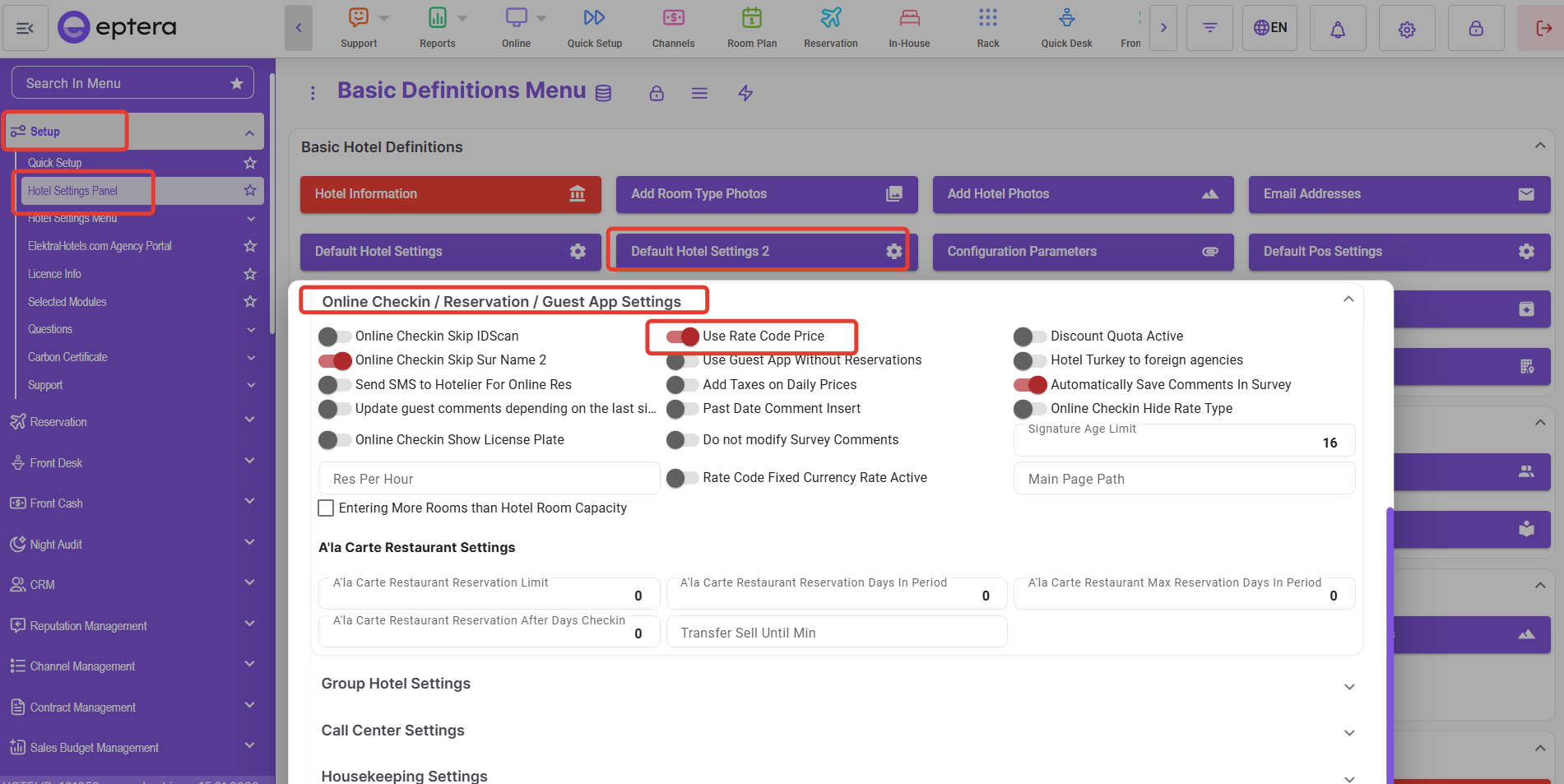
**Setup > Hotel Settings Panel > Default Hotel Settings 2 > Online Check in**
Enable the parameter **“Use Rate Code Price”**
#### 2. Configure the Rate Code
Go to:
**Contract Management > Rate Definitions > Contracts and Rate Codes**
Double-click the rate code you want to manage from the Availability & Rates screen.\
Under the **“Use Rates From”** field, select **“Ratecode Daily Prices”**
**Important:**\
The currency defined in the rate code is crucial. The selected currency will be the currency of the rates you enter for that specific rate code.
#### 3. Assign the Rate Code to a Board Type
Go to:
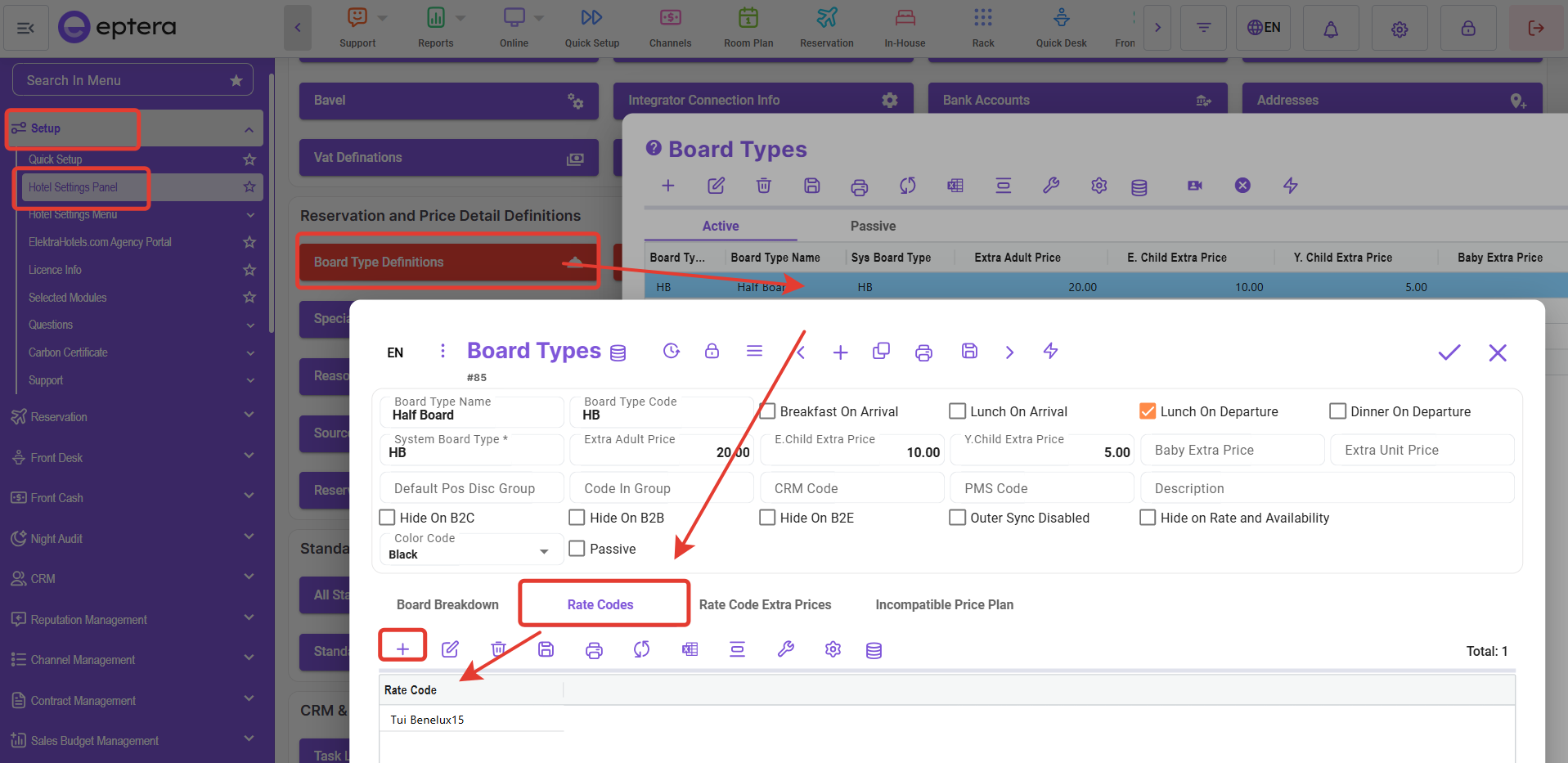
**Setup > Hotel Settings Panel > Board Type Definitions**
Open the **Rate Codes** tab.\
Click the **“+”** button, select the appropriate rate code for the relevant board type, and save.
#### 4. (Optional) Create Markets for Market-Based Pricing
If you plan to apply market-based pricing:
Go to:
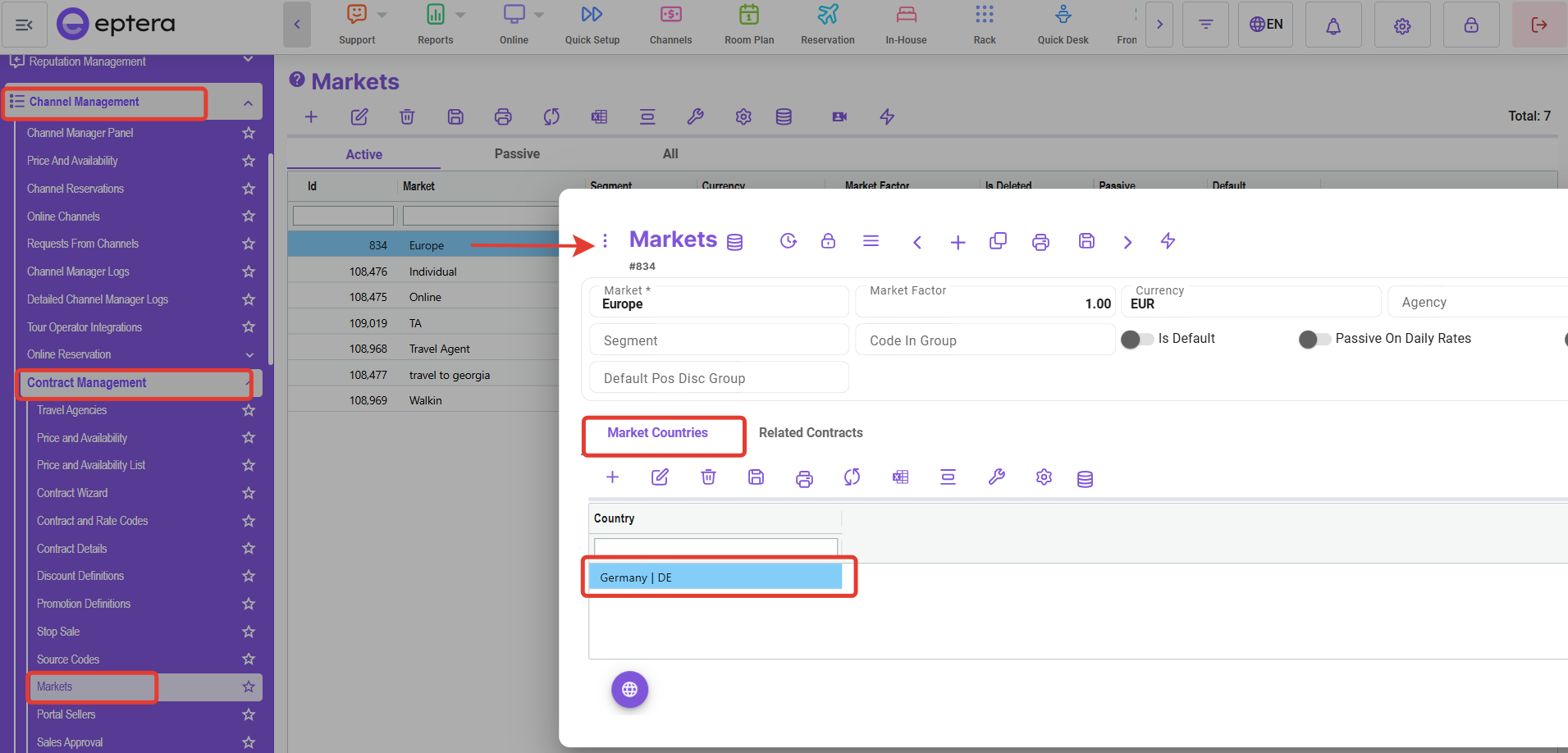
**Channel Management > Contract Management > Markets**
Click the **“+”** button to create a market and select the relevant countries.
If market-based pricing will not be used, you may skip Steps 4 and 5.
#### 5. Assign Markets to the Rate Code
Go to:
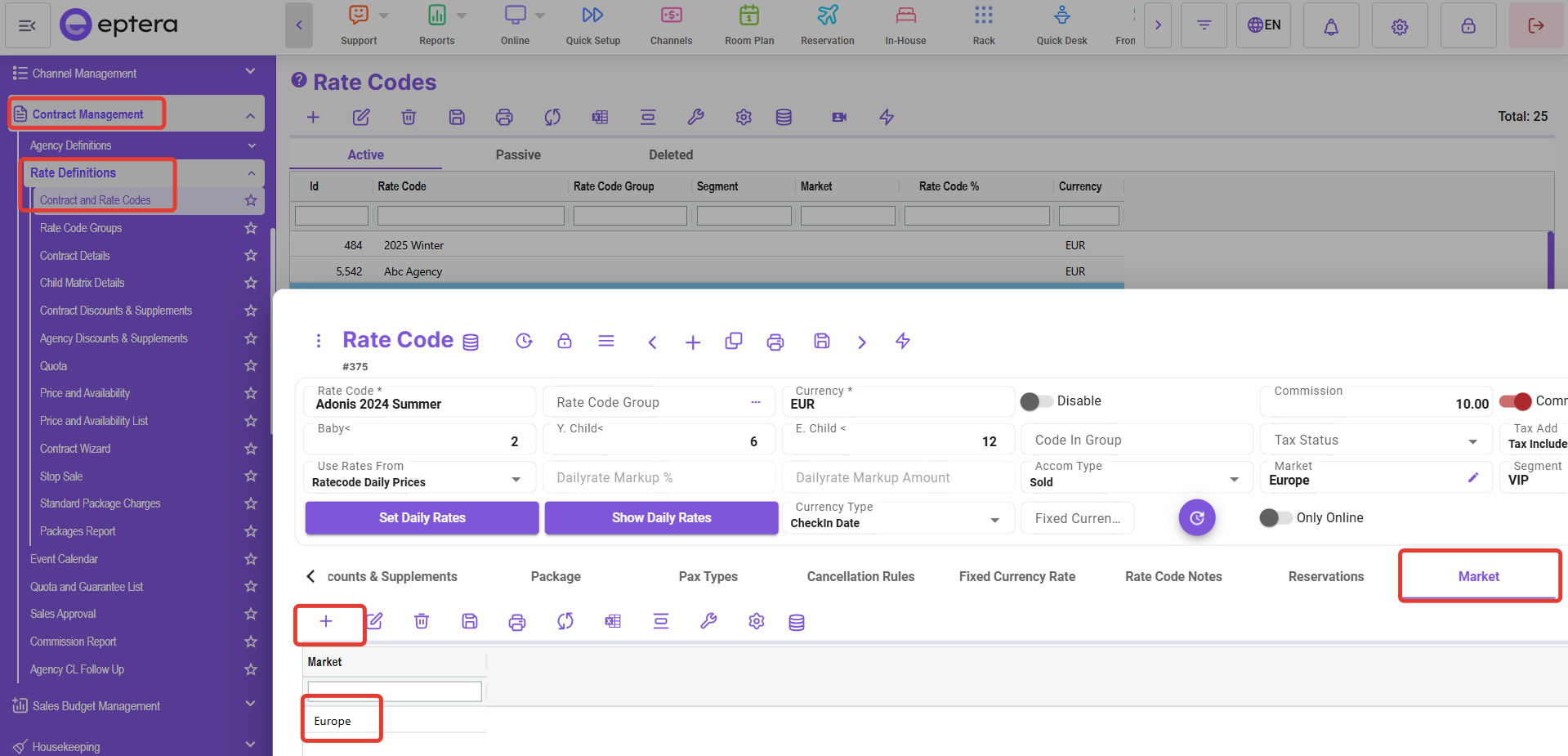
**Channel Management > Contract Management > Contracts and Rate Codes**
Open the rate code that will use market definitions.\
Navigate to the **Markets** tab within the rate code and click the **“+”** button to select the relevant market.
If a rate code with **“Ratecode Daily Price”** enabled has a market assigned, all other rate codes with the same parameter must also have a market selected.
#### 6. Manage Rates in the Availability & Rates Screen
After refreshing the page, the newly created rate codes will be displayed in the top-right corner of the **Availability & Rates** screen.
Select the relevant rate code to define and manage your rates accordingly.